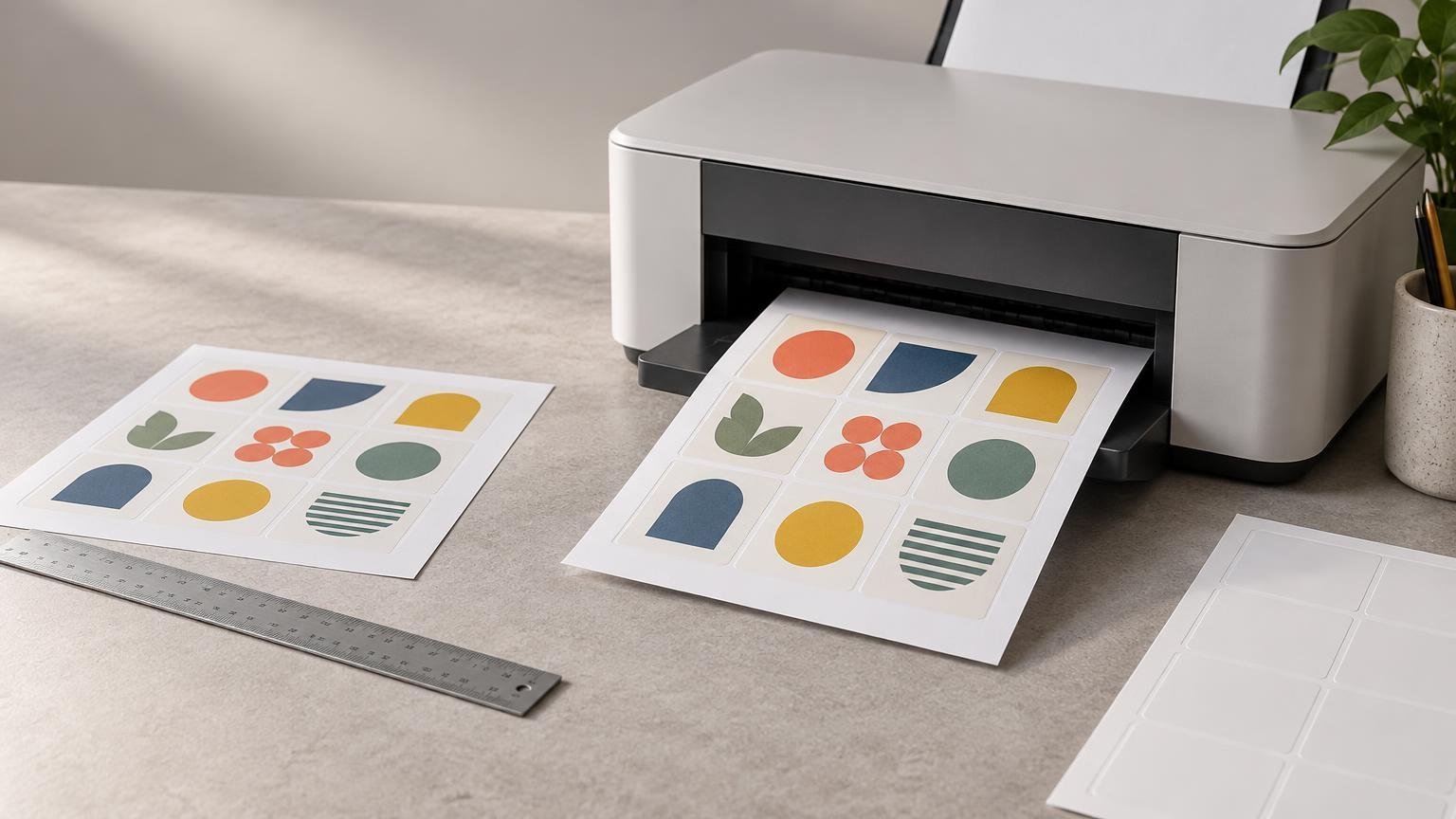
TLDR: Check these settings before printing
The safest printer settings for labels begin with five checks: confirm the document and printer page sizes, print at 100% or Actual Size, use label stock made for your printer technology, select a supported media type, and load the sheet through a tray approved for labels. Exact tray names, loading direction, and driver options depend on the printer model.
Print one plain-paper alignment test before using a label sheet. Place that test behind or over an unused sheet under a light to check the cut positions. If the design aligns on plain paper, inspect the label sheet for bends, curl, or lifting edges before printing. If it does not align, correct the document, template, or scaling rather than trying to compensate by moving individual designs.
Start with five questions about the job
Before opening the print dialog, define the label job. What material must go through the printer? What printing technology does the sheet support? How will the labels be applied? How many are needed? What must the proof communicate accurately?
For a sheet-label proof, appearance is only one concern. The print must also land inside each die-cut label, dry or fuse correctly on the facestock, and travel through the printer without separating from its liner. A design can look correct on screen and still fail because the PDF was reduced, the wrong sheet size was selected, or the printer treated the label stock like ordinary copy paper.
This guide covers blank sheet labels for home, office, and small-business inkjet or laser printers. Thermal roll printers use different media detection, calibration, heat, speed, and roll-loading controls and should be set up using their model-specific documentation.
The essential printer settings for labels
1. Match both page-size controls
Check the page size in the design file and again in the printer dialog. A letter-size template must be printed as a letter-size page, while an A4 template must be printed as A4. A mismatch can shift every label or cause the printer to resize the entire layout.
Also confirm that the selected printer is using the intended paper size in its Properties, Preferences, or Printer Setup menu. Some applications show one page-size control while the printer driver applies another.
2. Use 100% or Actual Size
Choose 100%, Actual Size, or an equivalent no-scaling option. Disable Fit, Shrink Oversized Pages, Scale to Fit, or automatic resizing. Avery’s guidance likewise recommends checking the page size and printing at 100% or Actual Size rather than allowing automatic scaling.
Even a small percentage change affects the position and dimensions of every design on the sheet. This commonly explains a page where the first row appears close to correct but the lower rows drift progressively farther from their cut lines.
3. Select a supported media type
Use Labels when both the printer documentation and driver offer it for the loaded stock. Media type can affect feed speed, print-head clearance, ink application, toner fusing, and other model-specific behavior. Canon’s documentation for the GX6120, for example, includes Label Paper as a selectable media type, but that does not establish the right setting for other models.
Labels, Cardstock, Heavyweight, and Plain Paper are not universal substitutes for one another. HP identifies Plain or Labels as possible choices depending on the printer. If no Labels option appears, consult the printer manual and the label-stock instructions rather than selecting the heaviest setting by default.
4. Use a tray approved for label stock
Do not assume that every tray in a printer supports labels. Some machines use a rear or manual path, while others specify a multipurpose tray. HP limits label printing to the multipurpose tray on certain LaserJet MFP models, illustrating why tray support must be verified for the exact model.
Follow the documented face-up or face-down loading direction. The correct orientation depends on the printer’s paper path, not on a general rule for inkjet or laser machines.
5. Print a plain-paper test
A plain-paper test can reveal scaling, clipping, orientation, and gross alignment errors without consuming a label sheet. HP includes a plain-paper test in its label-printing guidance. HP’s label-printing instructions
Compare the test with an unused label sheet. Check all four corners and several positions near the center; matching only the top-left label can hide progressive drift. Do not attach the paper test to a label sheet and feed the combined layers through the printer.
Confirm inkjet or laser compatibility
Use label stock identified as compatible with the printer technology. Inkjet materials are designed to accept liquid ink, while laser-compatible constructions must tolerate the printer’s toner and fusing process. Avery cautions that label sheets should be matched to the printer technology rather than treated as interchangeable.
The distinction matters even when two sheets look similar. An incompatible coating can contribute to smearing, weak image quality, or unreliable toner bonding. Specialty glossy, clear, film, and coated sheets require particular care: follow both the stock supplier’s instructions and the printer manufacturer’s supported-media list.
Before loading a sheet, inspect it on a flat surface. Do not use sheets with pronounced bends, damaged corners, or labels already separating from the backing. HP specifically advises against bent sheets and sheets with labels separating from the liner.
Set realistic color expectations for a desktop proof
A home or office print is useful for checking size, hierarchy, legibility, contrast, and approximate color relationships. It is not automatically a color-accurate production proof. The result changes with the printer, ink or toner, media coating, driver setting, and application used to print the file.
Evaluate small type, borders, barcodes, and QR codes at final size. Keep critical content comfortably inside each label edge so normal variation in sheet feeding does not clip it. A border that closely follows the cut line makes small alignment changes especially visible.
When comparing revisions, use the same printer, stock, media setting, print-quality setting, and file workflow. Changing several variables at once makes it difficult to identify why the color changed. For a production order, assess the provider’s proof according to the proof type offered; a screen proof may confirm layout and content without predicting exact printed color.
Troubleshoot common label-printing problems
| Problem | Likely cause | What to check first |
|---|---|---|
| Every label is too small or shifted | Automatic scaling or a page-size mismatch | Choose Actual Size or 100% and match the document, driver, and loaded sheet sizes. |
| The first row aligns but lower rows drift | Scaling error or inconsistent sheet feeding | Verify 100% scale. If scale is correct, inspect the sheet and confirm the supported tray and media setting. |
| The entire page is offset by a similar amount | Template placement, print margins, or feed registration | Confirm the correct template and orientation, then compare a plain-paper test at several points. |
| Artwork is clipped | Content is too close to the label edge or printer margin | Move critical content inward and verify that the correct sheet orientation is selected. |
| Ink smudges | Incompatible stock, unsuitable media setting, or insufficient drying | Confirm inkjet compatibility and follow the stock and printer instructions. |
| Toner rubs off | Stock or media setting may not suit the laser printer | Stop using the stock until its laser compatibility and the printer’s supported settings are confirmed. |
| The sheet jams or a label begins peeling | Damaged sheet, lifting label, unsupported tray, or unsuitable paper path | Stop the job, follow the printer’s jam-removal instructions, and do not reuse a damaged sheet. |
Change one variable at a time. Start with page size and scaling because they affect the geometry of the whole layout. Then check the template, tray, media type, and physical condition of the sheet. Moving artwork to compensate for an unresolved feed problem can produce a file that works once but fails on the next sheet.
If you created the artwork in Canva, the workflow in this guide to printing Canva labels can help you prepare the file before applying the printer checks above. For broader decisions about format and production, see the beginner’s guide to custom label printing.
When professional label printing is a better fit
In-house blank sheets can be practical for tests, changing information, modest quantities, office organization, and straightforward short runs. They let a business print only what it needs and update content without holding a large inventory.
Professional printing may be a better next step when the job requires a finished branded appearance, custom shapes, specialty constructions, repeatable production, or quantities that make manual sheet printing inefficient. CustomLabels offers blank-label and custom-printed workflows, while its shop includes sheet, roll, business, food and beverage, and variable-data categories. The roll labels versus sheet labels comparison explains how application method and quantity affect the format choice.
For packaging that functions more like promotional merchandise than a product label, professionally printed custom stickers may also suit the project. Whichever route you choose, confirm current materials, format options, minimum quantities, proofs, and production details on the relevant product page before ordering.
Quick pre-print checklist
- Use the template made for the exact label sheet.
- Match the document page size, printer-dialog page size, and loaded sheet.
- Select 100% or Actual Size; turn off Fit and automatic scaling.
- Confirm that the stock is made for inkjet or laser printing as applicable.
- Choose a media type supported by both the printer and label stock.
- Use only a tray approved for labels on the exact printer model.
- Load the sheet in the documented orientation.
- Inspect the sheet for curl, bent corners, damage, or lifting labels.
- Print a plain-paper test and check alignment across the entire page.
- Keep critical text, codes, and borders away from the cut edge.
- Print one label sheet before starting the full run.
Frequently asked questions
Should I select Labels, Cardstock, Heavyweight, or Plain Paper?
Use the setting specified for the printer and stock. Select Labels when the model supports that setting for the material. Do not assume Cardstock or Heavyweight is safer; those options can change printer behavior and are not universal replacements. If the driver lacks a Labels option, consult the model manual and stock instructions.
Should labels print at 100% or Fit to Page?
Use 100% or Actual Size for a template designed to match a die-cut sheet. Fit to Page can resize the layout and move designs away from the label positions.
How do I print a label PDF without changing its size?
Open the PDF in a viewer that exposes scaling controls. Select Actual Size or a custom scale of 100%, disable page fitting, choose the correct paper size, and verify orientation. Print a plain-paper copy before using label stock.
Why are the labels off-center?
If the whole sheet has a similar offset, check the template, page size, orientation, and print margins. If the error increases down the page, check scaling first. If the amount or direction changes unpredictably between sheets, investigate the tray, media setting, sheet condition, and paper feed.
Can any inkjet or laser printer handle label sheets?
No universal compatibility can be assumed. Confirm that the printer supports labels, that the selected tray is approved for them, and that the sheet is made for the relevant printing technology. The printer’s manual is the authority for model-specific loading and media restrictions.
Print one controlled proof before the full run
Reliable label printing comes from controlling the variables, not finding one magic driver preset. Match the template and page size, preserve 100% scale, verify stock compatibility, use an approved media setting and tray, and inspect every sheet before loading it. Once one sheet prints correctly, keep those settings unchanged and run the remaining quantity in manageable batches.
References
- Recommended Printer Settings; Specific Printer Settings | Avery
- Paper Settings in the Windows Printer Driver and on the Printer (Media Type) – GX6120
- HP Printers – Print labels for addresses, CDs, DVDs, and more | HP® Support
- HP LaserJet MFP E731, E786, E73130, E73135, E73140, E78625, E78630, E78635 – Load and print labels | HP® Support
- Printing Tips for Shipping Labels | Avery
- High Quality Custom Labels – Fast and Free Shipping
- Shop Labels – CustomLabels